
A slow website is one of the fastest ways to lose visitors. When a page takes too long to load, people leave before they even see your content. It doesn’t matter how good your design or article is—if your site is slow, users won’t wait. Search engines like Google also treat speed as a ranking factor, which means a slow website can hurt your SEO and visibility.
Website speed problems are common, especially for beginners and growing websites. The good news is that most speed issues can be fixed without advanced technical knowledge. This guide explains why websites become slow, how to identify the exact cause, and step-by-step ways to fix it.
Why Website Loading Speed Matters
Website speed affects three major areas: user experience, search rankings, and revenue.
When a site loads quickly, users stay longer, read more pages, and interact more. A slow site creates frustration and makes visitors leave almost immediately. Studies consistently show that even a one-second delay can significantly increase bounce rate.
From an SEO perspective, Google uses page speed and Core Web Vitals as ranking signals. A slow site is less likely to appear on the first page of search results, no matter how good the content is.
For websites that rely on ads, affiliate links, or product sales, speed directly affects earnings. Faster sites convert better, while slow sites lose money silently.
Common Causes of Slow Website Loading Speed
Before fixing speed issues, it’s important to understand what usually causes them.
One major cause is large images. Many websites upload high-resolution images directly from phones or cameras without optimization. These files are often several megabytes in size and slow down page loading.
Another common issue is too many plugins or scripts, especially on WordPress sites. Each plugin adds extra code, database queries, and requests that increase load time.
Poor hosting is another frequent problem. Cheap or overloaded hosting servers struggle to deliver content quickly, especially during traffic spikes.
Other causes include unoptimized CSS and JavaScript files, lack of caching, slow fonts, external scripts, and unclean website code.
Step 1: Test Your Website Speed
The first step in fixing speed issues is knowing how slow your website actually is and what is causing the delay.
Recommended Speed Testing Tools
- Google PageSpeed Insights
- GTmetrix
- Pingdom Website Speed Test
These tools show loading time, performance scores, and specific issues that need fixing.
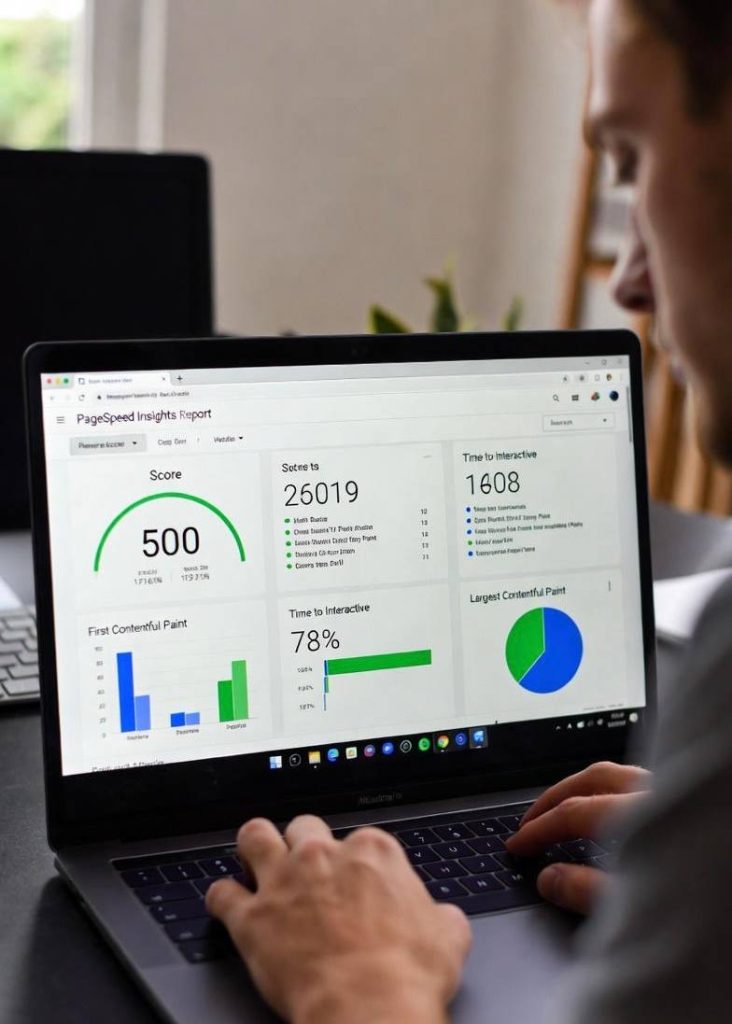
When reviewing the report, focus on:
- Largest Contentful Paint (LCP)
- First Contentful Paint (FCP)
- Total Blocking Time
- Page size and number of requests
These metrics tell you where the problem lies.
Step 2: Optimize Images Properly
Images are usually the biggest reason websites load slowly.
Large images increase page size and force browsers to download more data than necessary. Optimizing images can instantly improve speed.
How to Fix Image Issues
- Resize images to the actual display size
- Compress images before uploading
- Use modern formats like WebP
- Avoid uploading raw camera images
If you use WordPress, plugins like image optimization tools can compress images automatically.


Optimized images should load quickly without losing visible quality.
Step 3: Enable Browser Caching
Browser caching allows returning visitors to load your site faster by storing static files locally in their browser.
Without caching, users must download the same files every time they visit your site. With caching enabled, repeat visits are much faster.
What Caching Does
- Stores CSS, JavaScript, and images
- Reduces server load
- Improves page load time
Most modern hosting providers support caching, and WordPress caching plugins make this process easy.
Kinsta Hosting – Built-in edge caching panel
Modern hosting providers like Kinsta offer simple toggle-based cache controls directly in their dashboard:
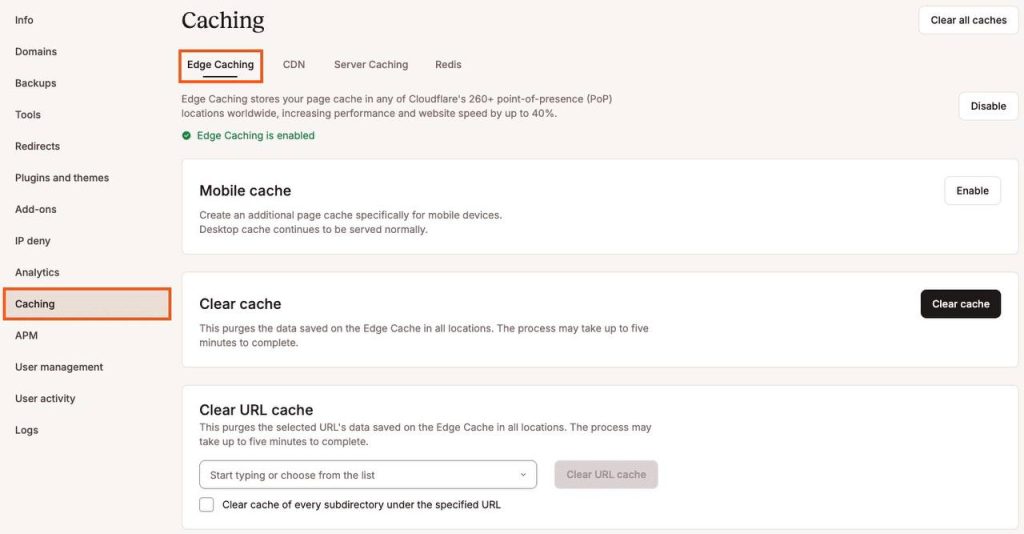
Once enabled, caching can significantly reduce load time for repeat visitors.
Step 4: Minify CSS, JavaScript, and HTML
Minification removes unnecessary characters such as spaces, comments, and line breaks from code files.
While these elements help developers read code, they are not needed by browsers. Removing them reduces file size and speeds up loading.
What Should Be Minified
- CSS files
- JavaScript files
- HTML output
Many performance plugins can handle this automatically.
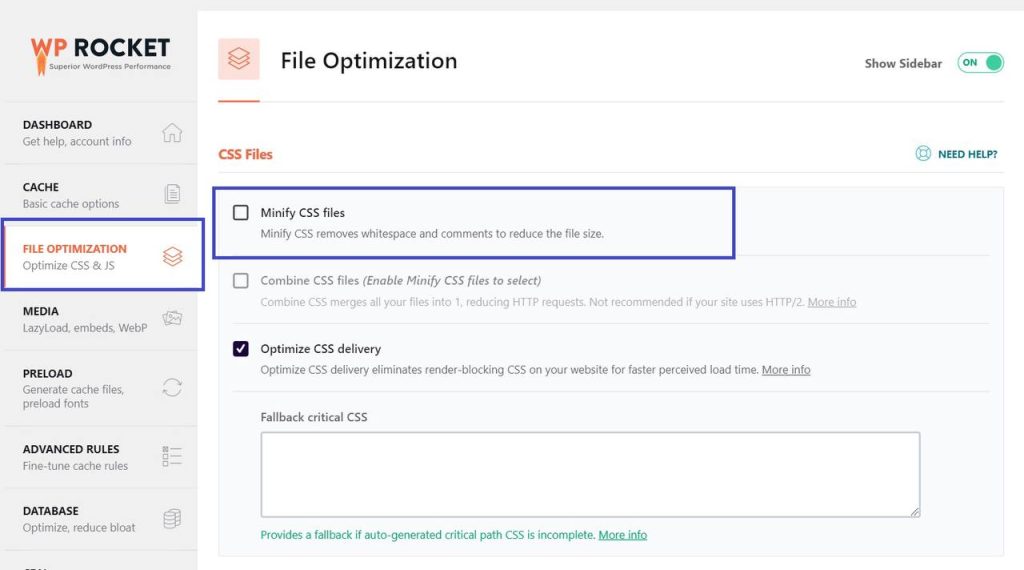
WP Rocket – File Optimization tab with minification enabled
Classic and clean interface where you enable minify CSS, JS, and HTML:
Step 5: Reduce Plugin and Script Usage
Using too many plugins or third-party scripts can slow your website dramatically.
Each plugin adds:
- Extra files
- Database queries
- Server processing time
Review your installed plugins and remove any that are unnecessary or duplicated.
Best Practices
- Use one plugin for one purpose
- Avoid plugins that do too many things
- Replace heavy plugins with lightweight alternatives
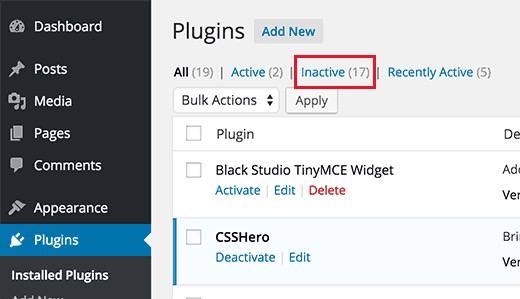
- Remove inactive plugins completely
Step 6: Improve Hosting Quality
No matter how optimized your site is, bad hosting will limit performance.
Shared hosting plans often place many websites on one server. If one site consumes too many resources, others slow down.
Signs You Need Better Hosting
- Slow performance even after optimization
- Frequent downtime
- Delayed admin dashboard loading
Upgrading to better hosting, managed WordPress hosting, or cloud hosting can provide an instant speed boost.
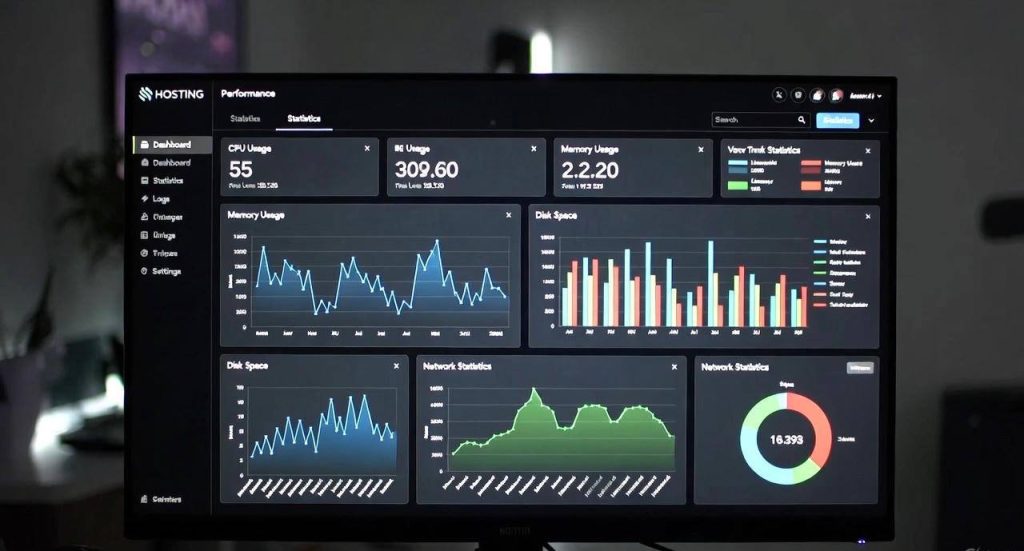
Good hosting is an investment, not a cost.
Step 7: Use a Content Delivery Network (CDN)
A CDN stores copies of your website files on servers around the world. When a user visits your site, content is delivered from the nearest server.
This reduces latency and speeds up loading, especially for international visitors.
Benefits of a CDN
- Faster global loading
- Reduced server strain
- Improved uptime and security
Many CDN services integrate easily with WordPress and other platforms.

CDNs are especially useful for media-heavy websites.
Step 8: Optimize Fonts and External Resources
Web fonts and external scripts (ads, analytics, embeds) can delay page rendering.
Optimization Tips
- Use system fonts when possible
- Limit the number of font families
- Load fonts locally
- Defer non-critical scripts
Each external request adds delay, so only load what is necessary.
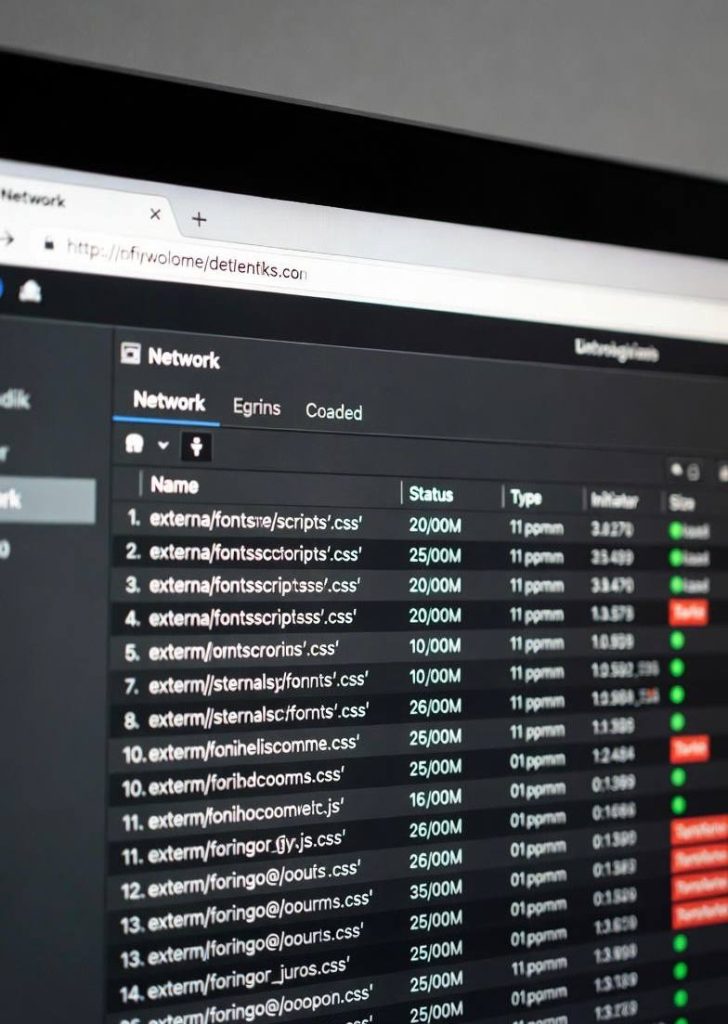
Small changes here can improve perceived speed significantly.
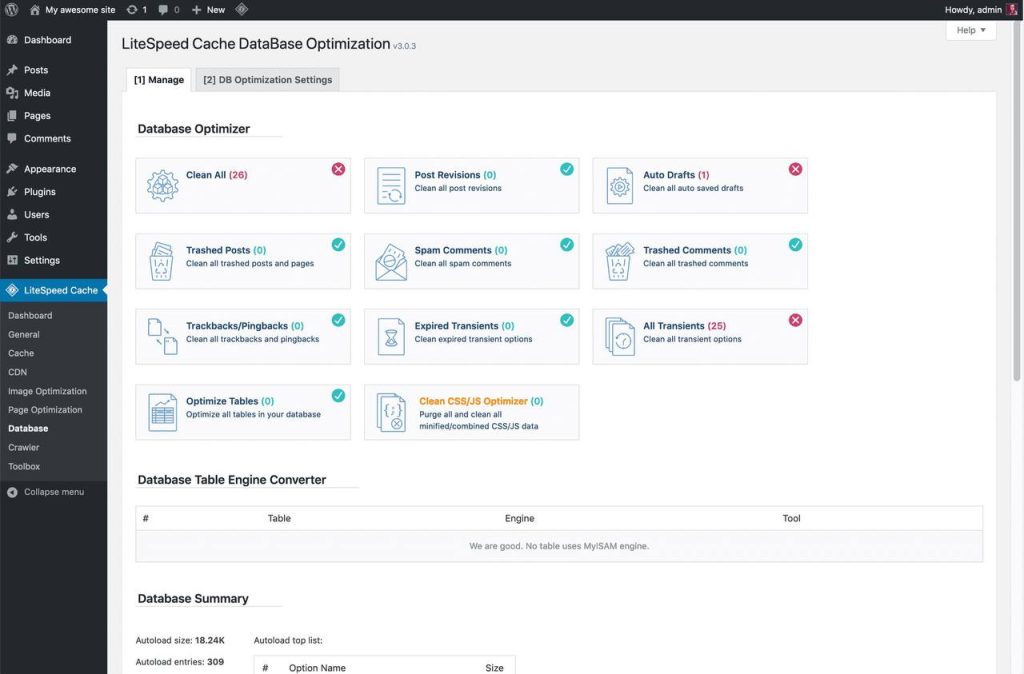
Step 9: Clean Your Website Database
Over time, databases accumulate unnecessary data such as:
- Post revisions
- Spam comments
- Temporary options
- Old plugin data
Cleaning your database reduces load and improves backend performance.
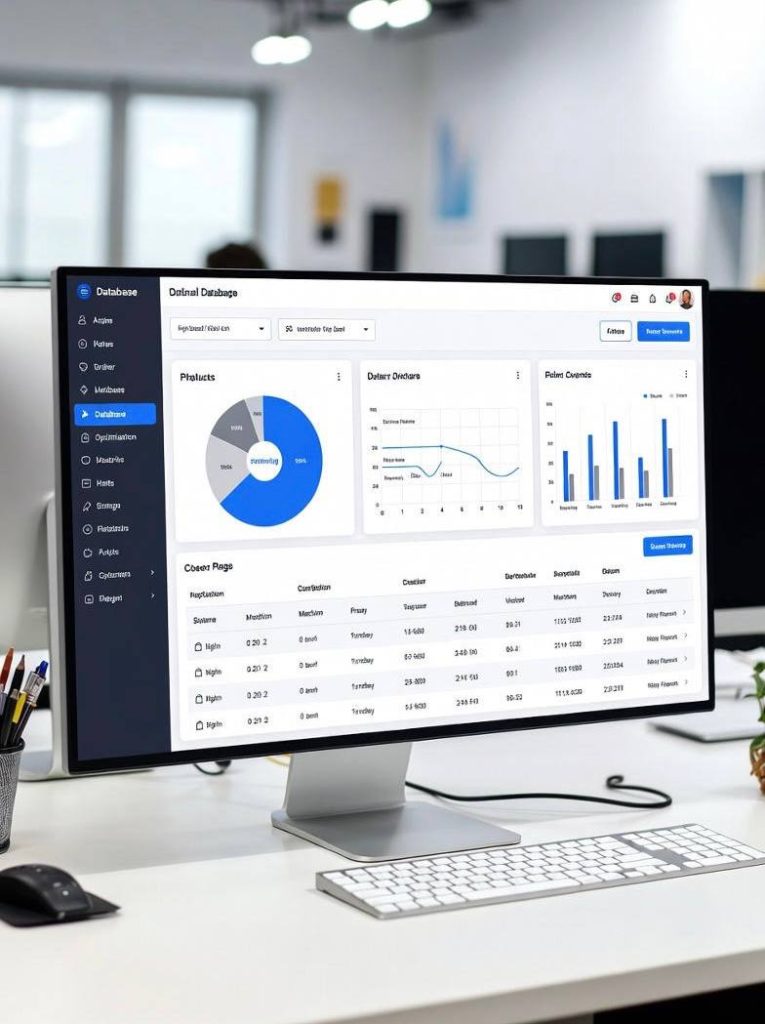
Always back up your site before cleaning the database.
Step 10: Test Again and Monitor Performance
After making improvements, test your website again using the same tools you used initially.
Compare:
- Load time
- Performance score
- Page size
- Core Web Vitals
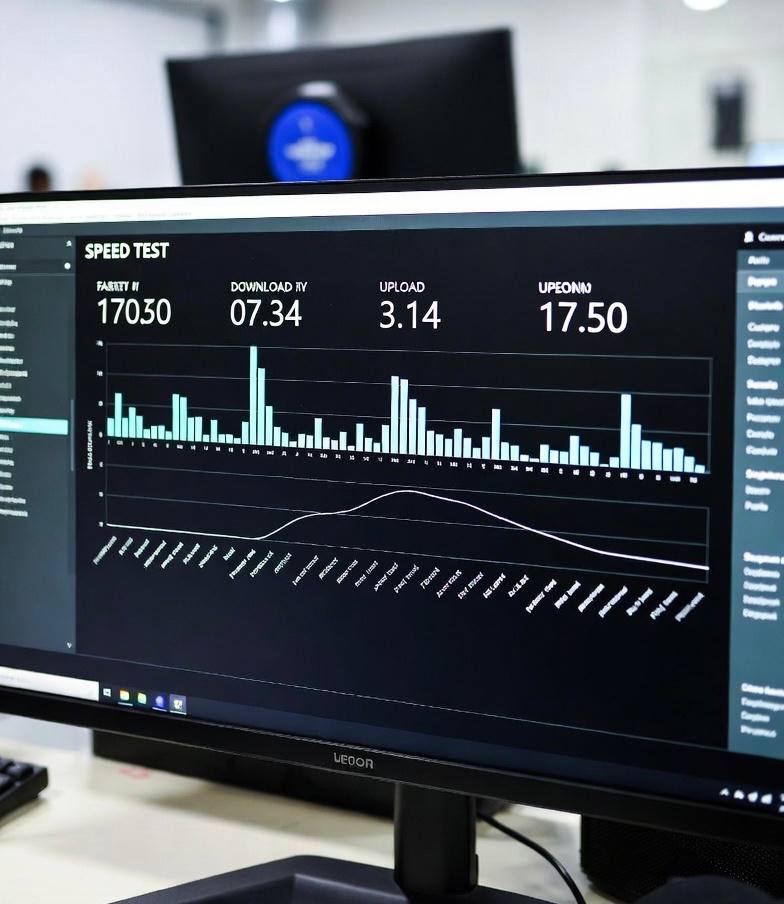
Speed optimization is not a one-time task. Monitor performance regularly, especially after installing new plugins or publishing new content.
Fixing slow website loading speed is not about one single solution. It’s a combination of good hosting, optimized assets, clean code, and smart resource management.
Even small improvements add up. Faster websites rank better, retain visitors longer, and perform better overall. Whether you run a blog, portfolio, or business site, speed optimization is essential for long-term success.